Share

Tuesday, April 30, 2013

how to remove showing post with lebel message from blogger


Remove showing posts with label message in blogger / BlogSpot friends we see in blog when we select label link in blog a message show in top showing post with label XXXXXXXX this is default label message of blogger you can remove this message it’s very easy to remove from blog.

Just follow below step for remove showing posts with label message.

#Login to your blogger Account
#Select your Blog.
#Click Template (See below help Image)


#After this Click to Edit HTML option. (See below help Image).


#Now find below code by pressing Ctrl+F


#Now replace above codes with below code.


Now Save your template you have done it. Now visit your blog and click on some label and check your label message has removed.

Saturday, April 27, 2013

How To Lock Your PC With Mouse - new tricks


We are here to learn about how to lock your PC with mouse. Just follow these simple steps to do this-

1- Firstly Right click on your desktop and make new shortcut

2- Now you will see the browse block. Fill this in this block ---> rundll32 --->user32.dll, LockWorkStation <--

3-Now give any name to the shortcut you want and hit Enter.

That’s it…!!

*Now when you double click onthis shortcut Your PC will get locked..!..

share this trick with your friends :)

How to Speed up Download using IDM


As we all know to get fast download speed we must use some download manager like IDM but to get the fastest download speed You must perform some settings which are listed below in form of simple steps are as follows...

1. How to Change Settings First IDM (Internet Download Manager)
The steps are:


1. Open Internet Download Manager -> Downloads -> Options
2. Connection -> Then change the "Default max. conn. number "from 8 to 16

2. Changing the Number of Decimal Registry on Internet Download Manager
The steps are:


1. Open the Registry settings, (Win + R and Type in registry)
2. Then the Registry Edit window will appear.
3. Then go to "HKEY_CURRENT_USER -> Software -> Download Manager." Then look at the right pane, find the string that reads "Connection Speed"
4. Then double-click on a String "Connection Speed" and Change Setting Base to "Decimal". Then fill in the number '2576980377 'on the blank column
5. Press "OK"
6. Good Luck

3. Using Mozilla Firefox Browser
The steps are:


1. Mozilla browser -> Tools -> ads-on and search Adson faster fox in the search field and install. The function of the plugin / ads-on this is mozilla store frequently visited pages so that if next time we visit the site it will be faster
2. How to Set Mozilla Firefox Faster order:
#Open Mozilla Firefox
#In the Firefox address bar type about: config
#Find the words below using ctrl + f and change as listed in the next.
#Network.http.pipelining; False <- click 2 times change "False" to "True"
#Network.http.pipelining.maxrequests; 4 <- click 2 times change "4" to "30"
#Network.http.proxy.pipelining; False <- click 2 times change "False" to "True"
#Then right-click in the blank , then choose New, then fill in the first column integer with nglayout.initialpaint.delay. Press enter one time and enter the number 0 and press enter again.
#Restart firefox mozilla browser
#Good Luck

Saturday, March 30, 2013

10 Useful Mouse Tricks For Windows 7 Users


I have noticed that people usually use their mouse just to click open a program or document, open the context menu and to select and drag-and-drop files or folders. But the mouse can do much more.

These tricks may not be that useful for everyone, but being a writer I often need to use them. Although, some of them are quite common and used by many people around – others are lesser known yet very useful.

1. Select Text Using [SHIFT] Key


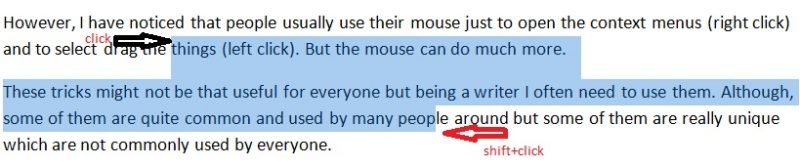
This is one of the simplest tricks of the mouse. However you can easily select the text by clicking the left mouse button and dragging it, but this sometimes becomes inept when we want to select till a specific character. Dragging often selects the complete word and this trick helps there. I also use this trick when my mouse doesn’t drag well.

2. Select Multiple Text Pieces Using [CTRL] Key


This trick is not that common I guess. Using this trick you can select multiple text pieces in a document. Select a text piece and then press and hold the [CTRL] Key and select the next text pieces you want.
Have you ever wanted to select multiple pieces of text on a document? What do you do then? Here’s the answer. Keep the Ctrl key held while selecting text. Again, keeping it pressed, select another piece of text; select the third piece of text and so on.
I must mention here that this trick don’t work on the online pages. You can use this tricks only on your Microsoft Office documents only.

3. Select Vertical Text Using [ALT] Key


Do you know how to select the text vertically? It’s very easy, just press and hold the [ALT] key and select the text using left button of your mouse.
I must mention here that this trick too doesn’t work on online pages. You can use this trick too only on your Microsoft Office documents only.

4. Zoom In and Zoom Out

I often need this trick as my eye sight is a bit weak. I usually work on Word with a Zoomed In page
If you also want to Zoom in your Word Document just press the [CTRL] and scroll up and [CTRL] and scroll down to zoom out.

5. Maximize Or Close The Window


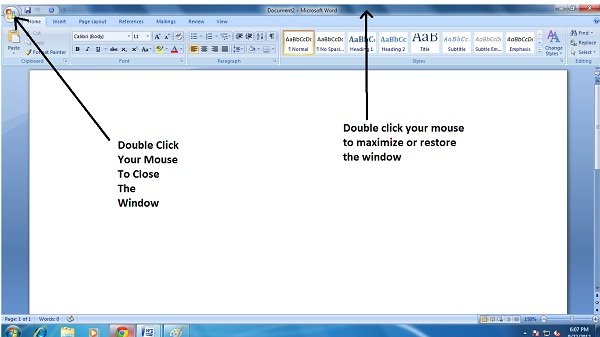
This is actually quite a common mouse trick but I find it worth adding in my list of useful mouse tricks. If you want to close a Window just double-click on the Windows Logo on top left corner of your Window.
To maximize or restore the Window, double-click your mouse on the title bar.

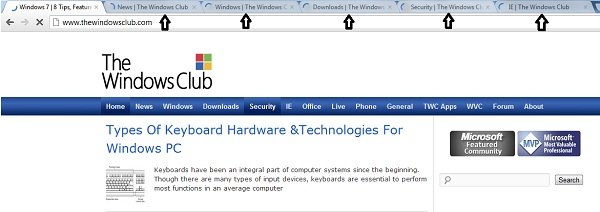
6. Open The Link In New Tab


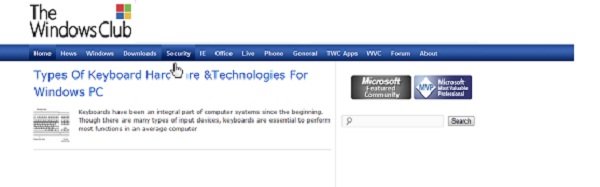
You can open any link in a new tab just by holding the [CTRL] Key and clicking on that link. However just the right-click give us the options to open the link in new window, new tab and in incognito window but this trick helps you save time.
This mouse trick also is helpful when your right-click is not working which is quite a common situation with my Windows PC.

7. Extended Context Menu


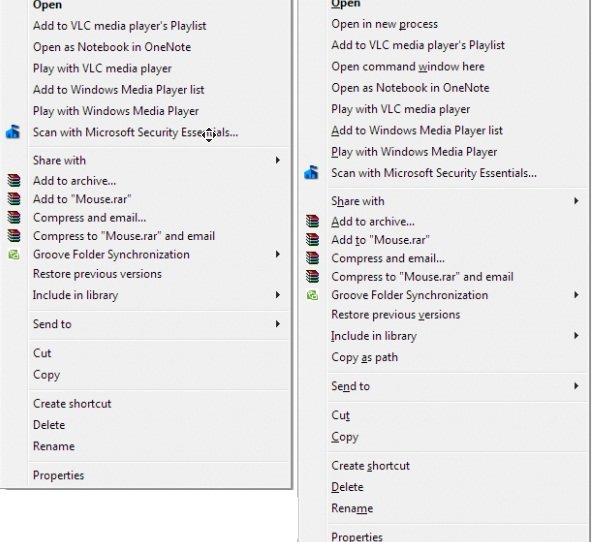
We all know that the right-click of our mouse bring up the context menu, but if you want an extended context menu just press and hold [SHIFT] Key while you click the right button of your mouse. Doing this will show an extended context menu.

8. Open Multiple Links


This is one of my favorite and most used mouse tricks. Being a blogger and a writer I research a lot and this trick helps me opening multiple links in real-time.
I just press and hold [CTRL] key and click on the links you want to open. All of them will open in a new tab.

9. Auto Scroll The Window

While reading on the Internet, I often come across posts having long lists or long pages. I hate reading those posts because I hate keeping my fingers on the mouse to scroll deep down.
I was glad to learn this auto scroll trick. I just take the mouse cursor on scroll bar and click the center button of my mouse and the whole post gets scrolled automatically. I just click left button of my mouse, when I want the scrolling to stop.

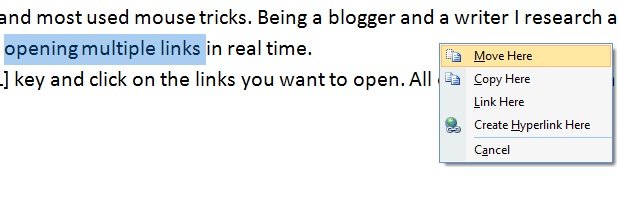
10. Drag and Drop


People usually press the right button of mouse to open the context menu, but I use it to move, copy or link a part of my document. I just select the text I want to move/copy and then drag my mouse to place where I want it to be and click the right button of my mouse. I get the option of Move here, Copy here, Link here, Create hyperlink and Cancel. I select the option I want.
I am done with my list of 10 useful mouse tricks. I am sure there are much more and I am eager to learn them. If you are using any other tricks which are worth adding in my list please let me know in the comments box below.

How to Take a Screenshot With Windows 7


They say a picture is worth a thousand words. When it comes to your computer, this is doubly true. There are times when it’s simply easier to show someone what you’re seeing on your screen that to attempt to describe it. Whether you’re giving instructions, asking for assistance, putting together a presentation or something else altogether a screenshot can make the entire process simpler and more effective. Luckily, if you’re a Windows user, capturing your screen – and then pasting it in a document, printing it, emailing it or saving it – is quick and easy to do.

Start by identifying the print screen key on your keyboard. Usually located somewhere near the backspace button or function keys, it will be labeled PrtScn, prt sc, PRTSC, or PRTSCN. If your keyboard doesn’t have a print screen button, consult your laptop or mobile device manual for the appropriate key combination to capture the screen. (Usually, this will be FN + Insert)

To take a screenshot of the entire screen, simply press the PrtScn button. To capture an active window, press Alt + PrtScn. Keep in mind that before you can paste, email, print or edit your screen capture, you’ll need to save it onto Paint or a similar image editing program.

To do this, click on the Start button in the bottom left corner of your screen. (It’s the circle with the windows icon.) Next, select All Programs and then Accessories. Finally, click on Paint. This will open up your Paint program. Alternatively, you can type Paint into the search bar at the bottom of the Start menu, and then select the program when it appears.

Once Paint is open, find the Clipboard icon. From this menu, you can click on Paste. This will paste the captured image onto the Paint window. From here, you can resize the image by clicking on Resize from the image group. You can enter a new pixel size or percentage from this screen. Once you have manipulated the image to a size you’re happy with, click Save to name your image.

Monday, March 25, 2013

Are U Hacked?? 5 Ways to Check if you are Hacked


In this post I am going to tell You 5 ways in which you can check if you are hacked.
Just follow along and check all the steps, you might also be one of the victims.

NOTE:- Before doing these steps, close all the downloads and web pages. Make sure on torrent of window update install is going on but stay connected to internet.

1) The first method is very simple for all the people using an ADSL router. After all the internet downloads are closed, just check the status of Ethernet light. It should not blink at a very fast rate. It shows that packets are being transferred in and out of your computer.

But as there is no active download or internet activity so no packets should transfer. If so… you might be hacked 2) goto run and type cmd. The command prompt will open. In the command prompt type

netstat -a

This shows the list of active internet connections, check if any unnecessary internet connection is ESTABLISHED. If so, you might be hacked
if you type just netstat, you will get the list of all the netstat commands, you may try the other commands as well.

3) You notice any abnormal activity in your computer, like your computer hangs for a couple of seconds every time you switch it on or in between your tasks (if it occurs often), there is a chance that you are hacked. Often keyloggers and trojans are configured to deliver all the log information to the destination ip address/ ftp address after reqular interval of time. And when this information is being sent, the browser hangs for some time.

4) Use softwares like TCP view, it gives the list of all the connections made through TCP. This software is capable of detecting almost all the trojan/malicious connections.

5) Keep the antivirus updated and install an external firewall like comodo. If your antivirus is not updated regularly, it is as good as nothing. If you don’t update your antivirus reqularly and often exchange data from other computers and download a lot of files. There is a great possibility that you are hacked. Just follow along and check all the steps, you might also be one of the victims.

NOTE:- Before doing these steps, close all the downloads and web pages. Make sure on torrent of window update install is going on but stay connected to internet. 1) The first method is very simple for all the people using an ADSL router. After all the internet downloads are closed, just check the status of Ethernet light. It should not blink at a very fast rate. It shows that packets are being transferred in and out of your computer. But as there is no active download or internet activity so no packets should transfer. If so… you might be hacked. Beware!! Stay updated, stay Protected.

Make your Computer Talk


Have you ever wondered how can you make your computer speak whatever you input to it like in the movies? Would it not be fun? If only it was possible! Rejoice, because now it is possible. Well, if you wish to know how to do this, then you have come to the right place. With this trick, you can create a script in Windows which will make your computer speak whatever you input to it.

To create one such talk script, follow the steps given below:-


Steps To Follow

1. Open Notepad.
2. Copy and paste the exact code given below.

Dim Message, Speak
Message=InputBox("Enter text","Speak")
Set Speak=CreateObject("sapi.spvoice")
Speak.Speak Message


3. Click on File Menu, Save As, select All Types in Save as Type option, and save the file as Speak.vbs or "*.vbs".
4. Double click on the saved file, a window will open like the one in the image. Enter some text in enter text column and click OK.


Now your Computer will speak / talk what you typed in Step 4. Try it yourself.

Windows Compatibility: This VBS file can be executed on all versions of Windows including Windows XP, Windows Vista, Windows 7 and Windows 8.

Personal Experience: I personally showed this trick to many of my friends and they were literally left awestruck. You too can impress your friends by making your PC talk and be the Computer Wiz.

 
Design by Free WordPress Themes | Bloggerized by Lasantha - Premium Blogger Themes | Online Project management